30 May 2010

Insert image instead of sending as attachment in Gmail

Once again, Google has proved its user friendliness in its product. Many of us might have wondered how images are inserted inline with text in Mails, instead of sending them as attachment. Until the Google Labs thing started, i used a simple trick to get the images embedded right into the mail. Let me describe it in steps..

Step 1: Ensure you have Picassa installed on your PC
Step 2: Right click on the image and click "Upload to Web album" (you may require to Sign in)
Step 3: Once uploaded into Picassa web folder name " Drop in", a new link to the Picassa folder will open in the browser
Step 4: Copy the image using mouse, as in you copy the whole text.
Step 5: Paste the image into the mail where you were composing.
Viola!! Your image is inserted right into the mail

Now that Google labs has enabled a plugin where in you can directly do the same from Gmail
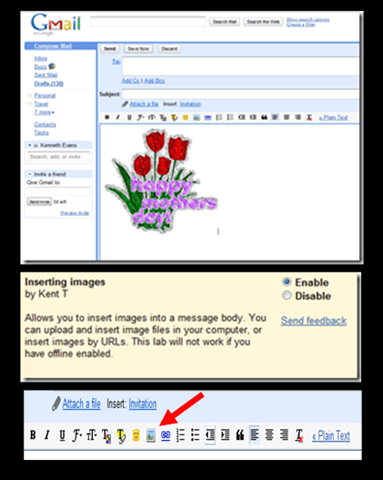
You can do so as below


Step 1: Login to your GMail account.
Step 2:  Go to “settings”
Step 3:  Go to “labs”
Step 4: Search for “Inserting Images” and enable it.
Step 5: Drag and drop an image into the compose area...
(Uploading of image will take time, according to the image size)

[image[18].png]

26 Jan 2010

File handling in Windows: TeraCopy Vs ExtremeCopy

I just came up with this new software called Extreme Copy, which supposedly handles file copying/ moving much faster than TeraCopy. I downloaded the Freeware and tested it limits. It has a slider option on the top left corner to change the speed of the file handling process bit seriously , i did not notice any change in the process.


Then i tested TeraCopy, which i have been quite familiar for many years now. I found that the speed of file reading were almost the same, and it hardly matters. In fact i would add that TeraCopy can be used to even delete/ test/ copy/ move files in Windows. It has better interface with more options and customized preferences than this dumb software Extreme Copy. 100% votes for TerCopy against ExtremeCopy, unless you want a simplified version of file handling software.

Tuneup 2010 : Personal review

Windows XP (R)  has been known to be the most stable home-use based OS, Microsoft has ever produced. I had used Tuneup in Windows XP but with the upgrading of OS to Win 7, i was unaware of the compatibility issues. Since my VMware had been eating my all resources, i finally uninstalled it and downloaded the new Tuneup 2010 version. Its awesome!!!! They have made so many improvements in the new version. I could not imagine how they could indulge deeply into the functions of the applications and suggest application specific recommendations.

Some of the features that were added as follows:
- Turbo mode (new)
This tool disable unneeded processes and concentrate all the PC processing power on your active program!

- Live optimization (new)
This tool accelerate the startup and response times of your programs - for optimal PC performance!

- Increase performance
This tool can increase the system performance by removing unwanted files, registry etc.

- Customize Windows
This tool can customize the way Windows looks, right from the appearances, styles, themes, logon screens and startup screens

- Fix problems
This tool can scan the system for any problems related to hardware, applications, drivers or registry and recommend changes if required to enhance the system performance and integrity


Some of the recommendations i received while running the scan were
- To install advertising filter, namely ADDBLOCK in Firefox (see attached snapshot)
- To customize the speed settings for higher speed
- The NIC card settings can be enhanced further for better speed etc


One of the nicest feature was the LIVE  optimization of system, just like an antivirus scanner that would scan the data packets in the system.And a small summary snapshot can be seen as an icon on the lower right task-bar. As you can see in attached image below, some of the services have been optimized to improve system performance in my system.


I made a customized logon screen using my last trip to Dharamsala, and my frens are quite impressed with it.. of course the looks and not of my foto :)
The registry cleaner has been improved with not only detection of stray registry entries but recommendations on what can be removed and its aftermath if removed, what applications will be affected and what are the effects etc. It was an awesome experience. Try your luck on it, i guarantee you a good time and satisfaction on the results
Windows 7 : Boon or disaster

When i used Windows 7 for the first time, about two months ago, i was pretty excited with all the new cool features and utilities. Down the line, i found it to be a resource chocking OS with CPU utilization touching 100% all the time. Until yesterday everything was working fine and then suddenly all the applications seems to be in hung state. When i checked the processes in task manager, i found so many application threads in queue mode, waiting to be served! I tried troubleshooting on my own as i was not able to use any application (including browser). The help offered by Windows are nice and user friendly, but i guess it needs more advanced options to be included as there was nothing which i can see what changes have been done to the system to improve the performance. Even after running the performance diagnostics tool and other things, i was still caught up with the hung state in the system. I had to uninstall some applications which were not used frequently, deactivate some services and so on , but there was no sign of improvement.

I finally took the pain to search on internet to resolve the issue, and came across this site but Computing Unleashed. I found it an amazing resource and did all what was told in the site. Now the CPU utilization has gone down to 30-40% at the most. I am very happy now. I do not understand why Microsoft has activated all those features that has bogged down the system! The features do look cool, and i have been using it for months now. I raised the performance issue to Microsoft development team once when a guy from the Win 7 development team had come to our office for the demo thing. He just asked me to do a defragmentation of the drives, and mail him in case of any problems. I did defrag the drives but in vain. The defag tool was also user friendly but not powerful tool. I used a third party tool for defragmentation and worked fine, still it would not resolve the performance issue.

If you are also a victim of the performance issue in Windows 7, please follow the above link.
I am not sure of the intentions of the Microsoft team. Imagine having such problems even when i have got 4 GB RAM, you kidding me?

9 Jan 2010

Windows 8 in the making!!!

How many people on this earth do you think might have upgraded their OS to Windows 7?
Very few, i suppose. Microsoft on the other hand is working on a newer version of Windows Operating System called Windows 8, can you believe it?

Its reported to be based on the interactive design by User interface designer Cullen Dudas.
Here are a few of the features reported to have been known to be added so far

* 128-bit compatibility to be possibly in Windows 8
Date of Discovery: October 2, 2009
Source: LinkedIn profile of a Microsoft employee
Link to corresponding post on W8C

* 8 to be possibly released in 2012
Date of Discovery: August 2009
Source: Italian Windows Server Presentation
Link to corresponding post on W8C

* Possible Windows 8 features (Distributed File System Replication and improvements to BranchCache) and the fact that its development has already begun
Date of Discovery: April 2009
Source: Job application posted by Microsoft
Link to corresponding post on W8C

Heres a video on the same


Courtesy: Windows8center

GodMode in Windows 7

I have discovered this one just now, thought its worth sharing.

Someone (dunno who did it) discovery of a hidden “GodMode” feature that lets users access all of the operating system’s control panels from within a single folder.

All you have to do is create and rename a folder!!

By creating a new folder in Windows 7 and renaming it with a certain text string at the end, users are able to have a single place to do everything from changing the look of the mouse pointer to making a new hard-drive partition.

Here’s how to enable this hack:

Create a folder in Windows 7
Re-name the folder to this exact string “GodMode.{ED7BA470-8E54-465E-825C-99712043E01C}”

And there you have it, a folder with all of your control panels for your PC .

Click on image to enlarge


Courtesy: BloggerIndia

8 Jan 2010

Windows 8 in the making!!!

How many people on this earth do you think might have upgraded their OS to Windows 7?
Very few, i suppose. Microsoft on the other hand is working on a newer version of Windows Operating System called Windows 8, can you believe it?

Its reported to be based on the interactive design by User interface designer Cullen Dudas.
Here are a few of the features reported to have been known to be added so far

* 128-bit compatibility to be possibly in Windows 8
Date of Discovery: October 2, 2009
Source: LinkedIn profile of a Microsoft employee
Link to corresponding post on W8C

* 8 to be possibly released in 2012
Date of Discovery: August 2009
Source: Italian Windows Server Presentation
Link to corresponding post on W8C

* Possible Windows 8 features (Distributed File System Replication and improvements to BranchCache) and the fact that its development has already begun
Date of Discovery: April 2009
Source: Job application posted by Microsoft
Link to corresponding post on W8C

Heres a video on the same


Courtesy: Windows8center

GodMode in Windows 7

I have discovered this one just now, thought its worth sharing.

Someone (dunno who did it) discovery of a hidden “GodMode” feature that lets users access all of the operating system’s control panels from within a single folder.

All you have to do is create and rename a folder!!

By creating a new folder in Windows 7 and renaming it with a certain text string at the end, users are able to have a single place to do everything from changing the look of the mouse pointer to making a new hard-drive partition.

Here’s how to enable this hack:

Create a folder in Windows 7
Re-name the folder to this exact string “GodMode.{ED7BA470-8E54-465E-825C-99712043E01C}”

And there you have it, a folder with all of your control panels for your PC .

Click on image to enlarge


Courtesy: BloggerIndia

23 Dec 2009

UAC Virtualization (Part 2)

As expressed in my earlier part about User Account Control in Windows Vista; when a standard user is logged into a Windows based computer, there are certain activities and actions that need to be protected. This is essential to protect the overall stability and security of the operating system. Windows Vista provides an excellent solution to help protect these key system areas. Vista uses User Account Control and Virtualization to accomplish the security and protection.

The Program Files directory (typically located at C:\Program Files and referred to as %ProgramFiles%) is where most applications store the executable files. The settings for the application are stored under the HKEY_LOCAL_MACHINE\Software key in the Registry in most cases. Both of these locations are protected by the operating system by only allowing the system and administrators write access, where users have read and execute access only.

The application data locations are created on user basis and are protected such that only that user has access to the data that is written by default.

However, many applications are not designed to work this way. Instead, they are designed to store user specific data under %ProgramFiles% and HKEY_LOCAL_MACHINE\Software. Unfortunately standard users do not have access to write to these locations, which has caused many companies to add standard users to the local Administrators group in order to run these applications.

Since the applications are not easily changed and users must still run these applications, Vista takes a different approach to fix the problem. Within Vista, UAC lends a helping hand by virtualizing the file system and Registry namespace. UAC will virtualize legacy applications, allowing standard users to remain a “standard user”, but still run the application. The definition of legacy in this case includes processes that are 32-bit, not running with administrative privileges, and does not include a Windows Vista manifest file. If a process or operation does not meet these criteria it is not virtualized.

UAC Virtualization
In Vista, you can see the UAC virtualization option in Task manager where you can see the various processes running in process tab. Right click on any one of the process which you wish to virtualize and you can click the UAC Virtulaization option.

When an action is virtualized, the resulting content is stored within the users’ profile as mentioned above. Depending on which content has been virtualized, there will be some indicators within the different interfaces to help you see the virtualization.

The first indicator will be within the Windows Explorer GUI. Depending on which folder and files have been virtualized, you will see additional menu options within Windows Explorer. Figure below illustrates what Windows Explorer shows when you have Virtualized files under the C:\Windows folder. (Compatibility Files)

The “Compatibility Files” menu addition to Windows Explorer only appears when there are files that have been virtualized. The new menu option appears only for those folders which have virtualized files or folders.

When the Compatibility Files menu option is selected, it will direct the Windows Explorer window to the virtualized files and the containing folder. Figure below illustrates what the contents of this virtualization of files and folders looks like.

Disqus

comments powered by Disqus